How to Choose a USB Hub? Power Delivery, Shared Bandwidth and Port Compatibility — Matched to Six Scenarios
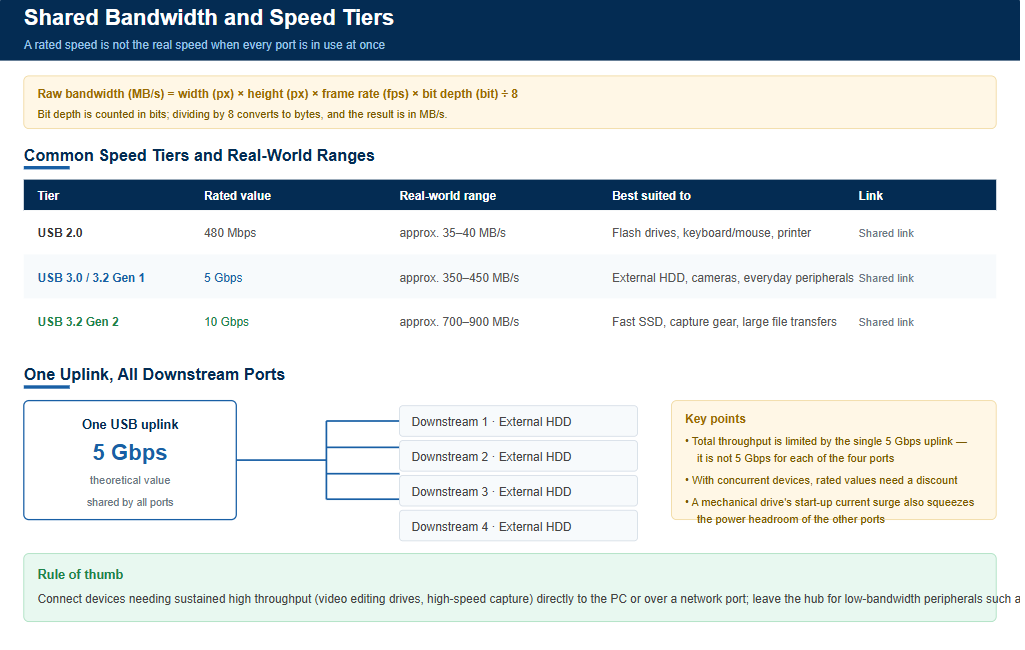
How to Choose a USB Hub? Power Delivery, Shared Bandwidth and Port Compatibility — Matched to Six Scenarios Abstract When choosing a USB Hub, the most important thing is to match it to the way you will actually use it, not to count the number of ports first. What really decides whether a hub is easy to live with are three often-overlooked parameters: the power architecture determines whether devices keep dropping offline, shared bandwidth determines how much speed is left when several devices run at once, and the port type determines whether you can plug in at all. This article works through these three parameters one by one, explains how each affects real use, and ends with a scenario-by-scenario quick-reference selection table that maps each use case to a specific Sipolar USB industrial hub model. Keywords USB hub, USB Hub, how to choose a USB hub, USB hub recommendation, powered hub, bus-powered hub, USB 3.0 hub, shared bandwidth, power delivery method, port compatibility, industrial USB hub, Sipolar I. The First Question When Choosing a USB Hub: What Will You Connect? Two hubs that both have “seven ports” can be completely different machines. Start by asking which devices you will plug in, and the answer will immediately narrow the field by more than half. Devices broadly fall into five categories: Device type Typical examples Key parameter requirement Low-power peripherals Keyboard, mouse, USB flash drive, card reader, printer Enough ports; power headroom is not critical Sustained high-throughput devices External HDD, SSD, camera, capture card Bandwidth is the primary constraint; shared bandwidth must be calculated High start-up current devices Mechanical hard drive, motor-driven peripherals Transient power headroom matters more than steady-state power Multi-port workstation A dozen or more devices online at once Port count, total unit power, mounting space Charging only Phone and tablet charging bays Per-port current tier and protocol; no data transfer The purpose of this table is elimination: rule out the parts that are irrelevant to your scenario, and what remains is an easy choice. II. Power Architecture: The Factor That Determines Stability This is the single most important point when buying, because it directly determines whether connected devices will drop offline repeatedly. USB Hub Power Delivery Compared: Bus-Powered vs Self-PoweredPower architecture determines stability — the first thing to confirm when selecting a hubCurrent Tiers in the USB SpecificationUSB 2.0 · Low power100 mA1 unit loadUSB 2.0 · High power500 mA5 unit loadsUSB 3.x · Low power150 mA1 unit loadUSB 3.x · High power900 mA6 unit loadsBC 1.2 charging1.5 ACharging tierTwo Power ArchitecturesBus-Powered Hub• No external supply needed; draws power from the PC’s USB port• Total unit current is limited by the upstream port budget• Of the upstream 500 mA, about 100–150 mA runs the hub itself• Downstream port count is spec-limited (typically 4); 1 unit load each• Only low-power devices are safe: mouse, keyboard, flash driveCautionWith several external drives or multiple devices connected, the supply oftenfalls short: devices disconnect, fail to be recognized, and in some casesdata writing is affected.Self-Powered Hub• Comes with its own adapter and powers each port independently• Every port can draw the full current tier• Load current does not come from the PC port, so no host budget is used• Port count is not limited to the four-port bus-powered rule• For external HDDs, SSDs, multiple cameras, simultaneous chargingCautionPower headroom depends on the supplied adapter and the unit’s total powerbudget — the adapter’s rating is not equal to the current available at asingle port.How to decide which type you need — ask three questions:1. Any mechanical drive or motor-driven peripheral? → Self-powered is mandatory. 2. More than four devices? → A bus-powered hub no longermeets the spec. 3. Total current of connected devices above 900 mA? → Go self-powered. A “yes” to any one means choose self-powered.USB current tiers, and the bus-powered versus self-powered comparison: which one you need follows from what you connect. USB Specification Current Tiers Tier Current Unit loads USB 2.0 low power 100 mA 1 unit load USB 2.0 high power 500 mA 5 unit loads USB 3.x low power 150 mA 1 unit load USB 3.x high power 900 mA 6 unit loads BC 1.2 charging 1.5 A Charging tier Bus-Powered Hubs A bus-powered hub takes power from the computer’s USB port, needs no external supply, is small and easy to carry. There are three costs: first, the whole unit’s current is limited by the upstream port budget — out of 500 mA at the upstream port, roughly 100–150 mA feeds the hub itself; second, the specification places a hard limit on the number of downstream ports (usually four), with at most one unit load each; third, the types of devices you can actually connect are capped by current — a mouse, keyboard or flash drive is fine, but an external hard drive (whose peak current often exceeds 1 A) or several devices at once will readily run short of power, showing up as disconnections, failure to be recognized, and in some cases affected data writing. Self-Powered Hubs A self-powered hub has its own adapter and powers its ports independently. The benefit is that each port gets the full current tier, load current is not drawn from the computer port and does not consume the host budget, and port count is not restricted by the four-port bus-powered rule. External hard drives, SSDs, multiple cameras, or charging several devices at once all require a self-powered hub. How to Tell Which One You Need Ask three questions: 1. Is there a mechanical hard drive or a motor-driven peripheral among your devices? If so, self-powered is a must — their start-up current is far higher than their running current. 2. Are there more than four devices? Above four, a bus-powered scheme is no longer valid under the spec. 3. Does the total current of the devices connected at once exceed 900 mA? If so, go self-powered. If the answer to any of the three is “yes”, choose self-powered. A Common Misunderstanding About “Self-Powered” Self-powered does not automatically mean “enough power”. The adapter’s stated current is the input rating of the whole unit, not the current available at a single port. How much a single port can deliver depends on the unit’s power allocation; if the whole unit is underpowered, the right move is to fit a higher-rated adapter, not to change the hub model — this is standard practice, not a product defect. III. Transfer Speed: Beware the “Shared Bandwidth” Trap Shared Bandwidth and Speed TiersA rated speed is not the real speed when every port is in use at onceRaw bandwidth (MB/s) = width (px) × height (px) × frame rate (fps) × bit depth (bit) ÷ 8Bit depth is counted in bits; dividing by 8 converts to bytes, and the result is in MB/s.Common Speed Tiers and Real-World RangesTierRated valueReal-world rangeBest suited toLinkUSB 2.0480 Mbpsapprox. 35–40 MB/sFlash drives, keyboard/mouse, printerShared linkUSB 3.0 / 3.2 Gen 15 Gbpsapprox. 350–450 MB/sExternal HDD, cameras, everyday peripheralsShared linkUSB 3.2 Gen 210 Gbpsapprox. 700–900 MB/sFast SSD, capture gear, large file transfersShared linkOne Uplink, All Downstream PortsOne USB uplink5 Gbpstheoretical valueshared by all portsDownstream 1 · External HDDDownstream 2 · External HDDDownstream 3 · External HDDDownstream 4 · External HDDKey points• Total throughput is limited by the single 5 Gbps uplink —it is not 5 Gbps for each of the four ports• With concurrent devices, rated values need a discount• A mechanical drive’s start-up current surge also squeezesthe power headroom of the other portsRule of thumbConnect devices needing sustained high throughput (video editing drives, high-speed capture) directly to the PC or over a network port; leave the hub for low-bandwidth peripherals such as keyboards, mice, card readers and audio.Shared bandwidth: all ports share one uplink, common speed tiers, and the real-world ranges to expect. All ports on a hub share the bandwidth of the same uplink channel. A hub rated at 5 Gbps does not give every port 5 Gbps — all ports together share that 5 Gbps. How to Calculate Bandwidth Raw bandwidth (MB/s) = width (px) × height (px) × frame rate (fps) × bit depth (bit) ÷ 8 Bit depth is counted in bits, and dividing by 8 converts it to bytes; the result is in MB/s. For example, a 20-megapixel camera (5472 × 3648) outputting at 25 fps and 8 bit has a raw bandwidth of about 477 MB/s, and in practice you should leave another 20–30% of headroom. Common Tiers and Real-World Conditions Speed tier Rated theoretical value Real-world usable range Best suited to USB 2.0 480 Mbps approx. 35–40 MB/s Flash drives, keyboard/mouse, printer USB 3.0 / 3.2 Gen 1 5 Gbps approx. 350–450 MB/s External HDD, cameras, everyday peripherals USB 3.2 Gen 2 10 Gbps approx. 700–900 MB/s Fast SSD, capture gear, large file transfers When several devices read and write at the same time, the rated value needs a discount. According to public technical material and common engineering practice, real throughput typically lands at 60–80% of the rated value. One Judgment You Must Understand Connect core storage devices directly to the computer; leave the hub for low-bandwidth peripherals such as keyboards, mice, card readers and audio. This is about putting bandwidth where it matters — not that a hub cannot handle a drive, but that connected devices share the channel with each other. Also note that a mechanical drive’s start-up current surge affects not only power headroom, but also squeezes the bandwidth available to the other ports in that instant. Which Speed Standard to Choose At 5 Gbps, USB 3.0 (also called USB 3.2 Gen 1) is currently the best value. For more performance, look at USB 3.2 Gen 2 (10 Gbp